Setup Assistant
Beginner-friendly setup with presets and daily plan controls.
Featured demo
A practical walkthrough of how TradeGuard Pro MT5 helps manual traders protect a daily trading plan inside MetaTrader 5.
TradeGuard Pro MT5 is built for traders who want more structure around daily limits, session behavior, news protection, break-even management, trailing stop management, and on-chart safety actions.
TradeGuard Pro MT5 does not open trades, give signals, or guarantee profit.
MT5 risk workflow
What the demo covers
This demo page shows the main TradeGuard Pro MT5 workflow, from setup to daily plan protection and chart-based controls.
Beginner-friendly setup with presets and daily plan controls.
Configure max trades, profit goal, loss limit, losses in a row, and reset behavior.
Use session rules and manual news lock settings to avoid lower-quality trading windows.
Use break-even and trailing stop controls for existing positions.
Monitor status, pause or resume management, and use confirmation-based safety actions.
See how the interface communicates when trading rules are reached.
Video
A recorded MT5 walkthrough is being prepared to show the complete workflow: installation, Setup Assistant, daily plan configuration, session and news controls, break-even and trailing stop behavior, dashboard actions, and safety confirmations.
Coming Soon
The video will show the EA running inside MetaTrader 5 using a demo-account workflow.
Until the full video is published, the screenshots below show the current interface and core workflow states.
Interface preview
These screenshots show the current MT5 interface, including dashboard states, setup controls, session/news configuration, and chart-based action buttons.
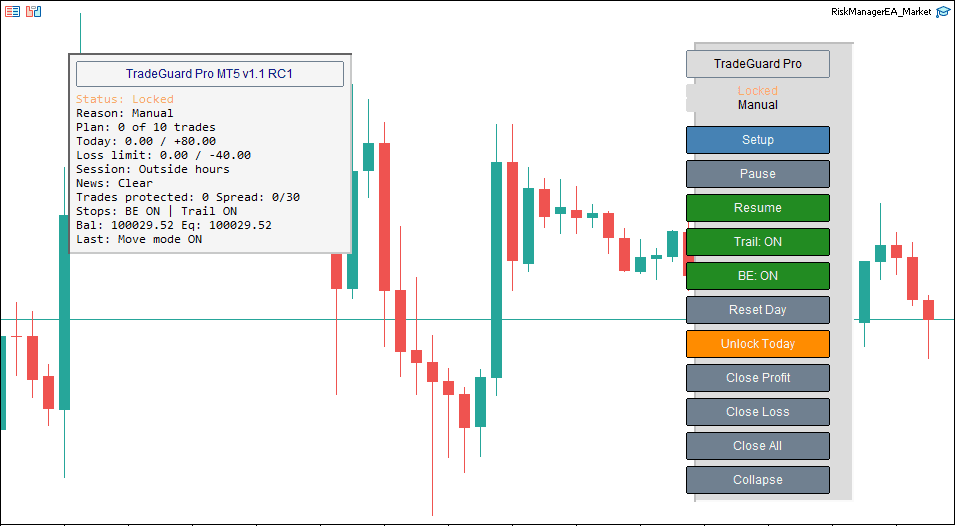
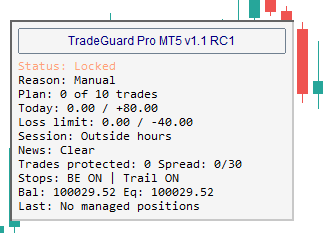
The main dashboard and control panel show the current plan status, session/news state, protected trades, break-even, trailing stop, and quick action controls.
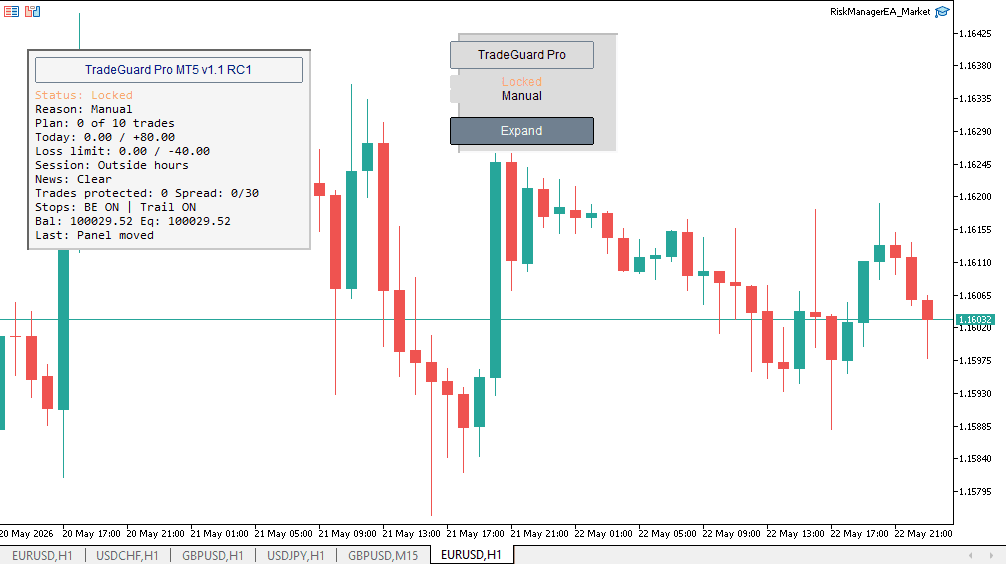
A locked state helps the trader see when a manual pause, session rule, or daily plan condition is active.
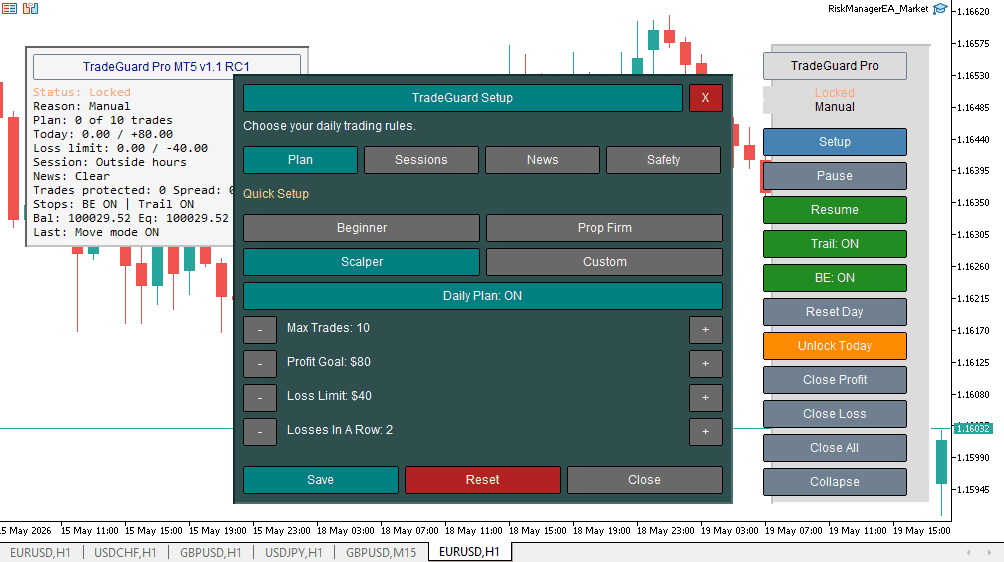
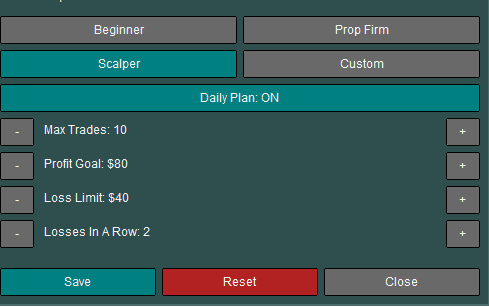
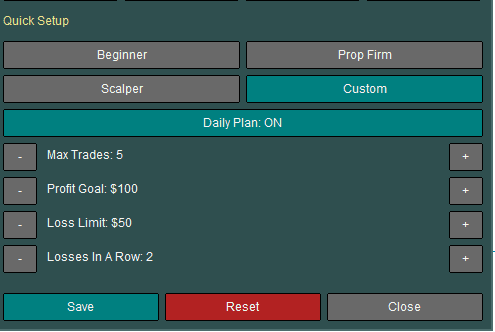
The Setup Assistant gives traders a chart-based way to configure presets, daily plan rules, session behavior, news settings, and safety options.
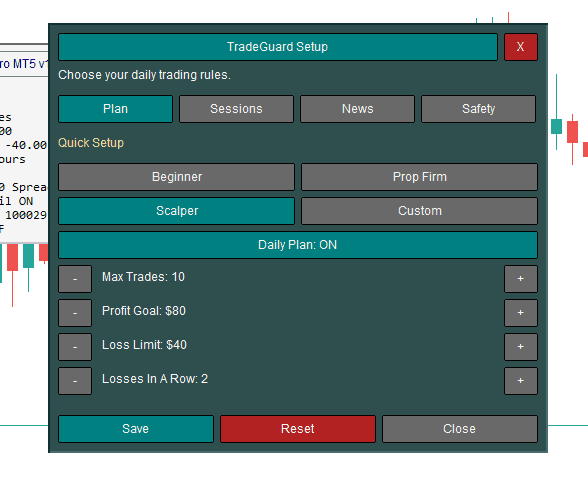
Configure max trades, profit goal, loss limit, and losses-in-a-row behavior directly from the setup workflow.
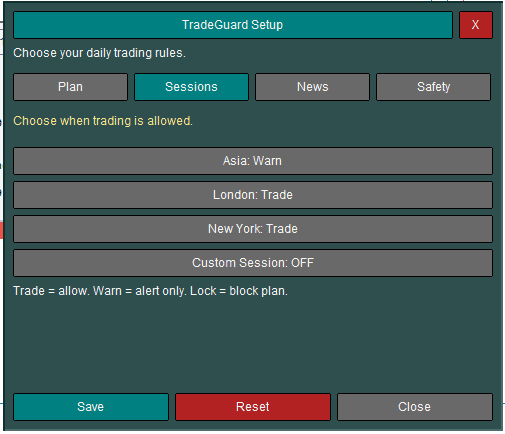
Session controls help traders define how Asia, London, New York, and custom sessions should behave.
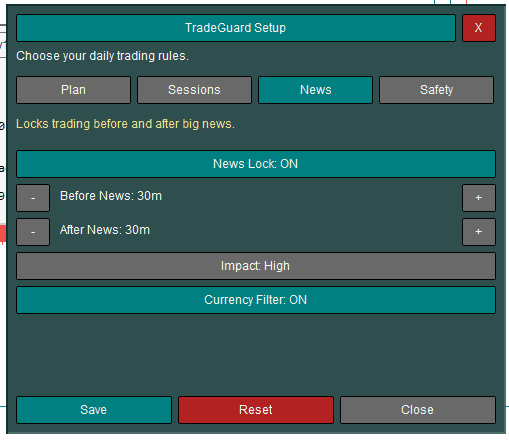
Manual news lock controls help traders prepare for scheduled high-risk events using before-and-after lock timing.
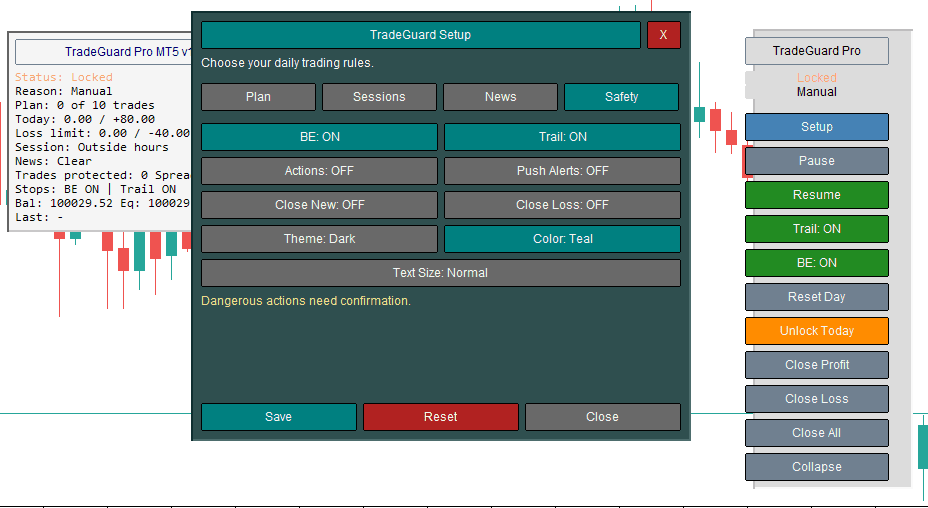
Safety options keep destructive actions controlled and help traders decide which automation behaviors are allowed.
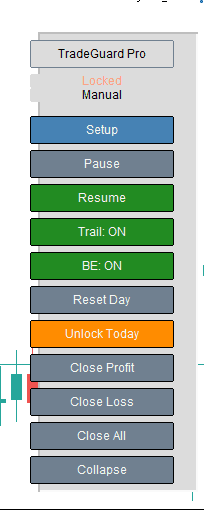
The control panel provides fast access to setup, pause, resume, break-even, trailing stop, reset, unlock, and close actions.
Break-even and trailing stop controls can be toggled from the chart for existing managed positions.
When a configured trading rule is reached, the dashboard communicates the current lock or warning state clearly.
Daily profit-target behavior can help traders stop after reaching a planned objective, depending on selected settings.
Workflow
TradeGuard Pro MT5 is designed around a trader-defined plan, not automated entries.
Attach the EA to a MetaTrader 5 chart and confirm Algo Trading is enabled.
Choose a preset or configure the plan manually.
Set max trades, profit target, loss limit, losses in a row, sessions, news lock, and stop-management behavior.
TradeGuard Pro MT5 does not open trades. The trader remains responsible for entries.
The EA watches configured rules, existing positions, session behavior, and news-lock conditions.
When rules are reached, the dashboard can warn, lock, or manage according to the selected safety mode.
Use the panel to pause, resume, reset, unlock, or adjust settings as needed.
Safety note
TradeGuard Pro MT5 does not open trades, does not give signals, and does not guarantee profit. It is designed to support a trader's risk workflow by helping enforce daily rules, session behavior, and trade-management controls. Trading involves risk, and every trader remains responsible for their own decisions.
Next step
Join the Founders Beta, request a walkthrough, or contact Swiftfolio Automation if you need a custom version for your trading workflow.
FAQ
A quick preview of common TradeGuard Pro MT5 questions.
Swiftfolio Automation is a trading automation and trading software company building MetaTrader tools, risk-management systems, trade copiers, Telegram automations, crypto scanners, dashboards, and custom workflows for traders and trading communities.
No. TradeGuard Pro MT5 is the first featured product in the Swiftfolio lineup. The company also builds custom MT5 tools, Telegram automation, scanner dashboards, trade copiers, and future products.
Yes. We build MT5 Expert Advisors, indicators, trade managers, dashboards, copier tools, alerts, and automation workflows from documented rules.
Yes. We can build Telegram alert flows, signal parsing, review dashboards, and controlled automation workflows when the requirements and safeguards are clearly defined.
Yes. We can build scanner dashboards, alert systems, monitoring tools, and integrations for crypto workflows where requirements and risk controls are clearly defined.
No. Swiftfolio Automation builds technical tools only. Trading involves risk, and software cannot remove market risk or provide financial advice.